



Quick Facts:
- Topic: Starlink passkey sign-in for overlanders and RVers.
- Launched: October 2026.
- Time required: A few minutes per device.
- Cost: Free.
- Sign-in methods: Face ID, fingerprint, device PIN, or a hardware key.
- Limit: Up to 10 passkeys per account.
- Off-grid reactivation: Unconfirmed by Starlink as of October 2026.
- Best for: Starlink Mini and Roam owners who travel beyond cell coverage.
8 min read
In This Guide
Starlink Passkey Overview
A Starlink passkey lets you sign in to your Starlink account with Face ID, a fingerprint, or your device PIN instead of a typed password. Starlink switched the option on in October 2026, and it sits in the Privacy and Security settings of both the app and starlink.com. Setup takes a few minutes, and it costs nothing.
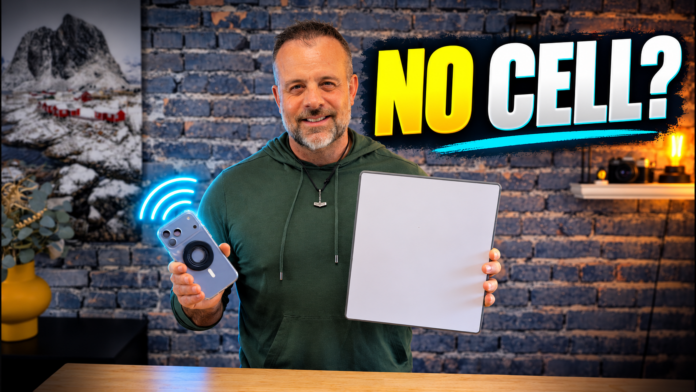
For overlanders, the sign-in code matters more than the speed. Most sign-ins still end with a wait for an emailed or texted passcode. Back home, the wait is a nuisance. At a dry camp 40 miles from any cell tower, however, a canceled dish leaves the code no way to reach you. The forums hold plenty of owners who learned this standing next to a working dish.
A Starlink Mini is one of my top three must-haves for any rig, next to a reliable compressor and a good first aid kit. My Colorado ZR2 stays nearly stock, yet the Starlink on the roof made the cut. For me, the code lockout is the weakest link in Starlink for off-grid travel, so any change to sign-in gets my attention.
This guide covers how passkeys work and how to set one up. It also tackles the question every Mini owner asks next: will a passkey let you reactivate service in a dead zone? The short answer is unconfirmed, but a quick home test checks part of it before your next trip. If you are still building your kit, start with our Starlink Mini camping setup guide.
What You’ll Need
Tools
- A phone or computer with Face ID, a fingerprint reader, or a screen-lock PIN.
- The current Starlink app or an updated web browser.
Materials
- Your Starlink email and password for the first sign-in.
- Optional: a password manager such as iCloud Keychain, Google Password Manager, 1Password, or Bitwarden.
- Optional: one hardware security key such as a YubiKey.
Hardware Security Keys Worth Comparing
A hardware key makes a sturdy backup for your Starlink account, because it has no battery and needs no signal. Three Yubico models cover most setups. The YubiKey 5C NFC fits USB-C phones and laptops, while the two Security Key models cost less and handle FIDO sign-ins only. Also check the port type before you buy, since USB-C and USB-A keys differ. Setup steps for a key appear later in this guide.
| Most Versatile | Best Budget USB-C | Best Budget USB-A | |
|---|---|---|---|
| Product | TOP PICK YubiKey 5C NFC YubiKey 5C NFC |  Security Key C NFC Security Key C NFC |  Security Key NFC Security Key NFC |
| Rating | ★★★★☆ 4.5 7,500 ratings | ★★★★☆ 4.3 2,800 ratings | ★★★★☆ 4.4 2,100 ratings |
| Port | USB-C and NFC | USB-C and NFC | USB-A and NFC |
| Protocols | Multi-protocol | FIDO only | FIDO only |
| Price | $58.00 as of Oct 23, 5:08 pm | $29.00 as of Oct 23, 5:08 pm | $29.00 as of Oct 23, 5:08 pm |
| Check Price → | Check Price → | Check Price → |
Starlink Passkey Key Facts
Here are the details from Starlink’s help center and recent plan changes, in one place.
| Item | Details |
|---|---|
| Where to find it | Settings, then Privacy and Security, then Passkeys |
| Storage options | Device, password manager, or hardware key |
| Password still active | Yes, passkeys are optional |
| Single sign-on accounts | Not supported |
| Starlink two step verification | Emailed passcode, with SMS as a backup |
| Starlink Standby Mode | $10 per month, up to 500 Kbps, parked use only |
How a Starlink Passkey Works
A passkey replaces a shared secret with a matched pair of digital keys. When you create one, your device makes both keys. Starlink stores the public key on its servers, while the private key stays on your device and never leaves it.
At sign-in, Starlink sends a one-time challenge to your device. Only the private key solves it, and your device releases the key once you pass your screen lock. Starlink then checks the answer against the public key and lets you in. According to Starlink’s passkey help page, your fingerprint, face data, and PIN stay on your device, and Starlink never sees them.
This design closes three common gaps. A server breach exposes only public keys, which are useless to a thief. Also, a passkey works only on the real Starlink site, so a fake login page collects nothing. Finally, each passkey is unique to your Starlink account, so a leak elsewhere never exposes it.
Industry numbers back this up. The FIDO Alliance’s 2026 Passkey Index reports 36% of successful sign-ins now use a passkey, up from 26% in 2025. Passkey sign-ins also succeed 93% of the time, compared with 78% for traditional multi-factor sign-ins, and they save an average of 27 seconds per login.
How to Add a Passkey to Your Starlink Account
You set up a Starlink passkey once per device or once per password manager. Sign in the old way first, then follow the path for your device.
Set It Up in the Starlink App
- Open the menu, then tap Profile.
- Tap Privacy and Security, then Passkeys.
- Tap the plus button to add a passkey.
- Approve the prompt with Face ID, a fingerprint, or your PIN.
If the Passkeys option is missing, update the app first. Early iPhone and Android users reported the option missing, and the app update reached some people days later.
Set It Up on starlink.com
On a computer, sign in at starlink.com, open Settings, and choose Privacy and Security. Under Passkeys, pick Add Passkey to save it to your computer, phone, or password manager. If your browser shows a “does not support passkeys” message, update it or switch browsers.
Add a Hardware Key as a Backup
Starlink also accepts physical keys such as a YubiKey. Choose Add Hardware Key, then plug in or tap the key when your browser asks. Because Starlink allows up to 10 passkeys, you have room for your phone, your laptop, and one key stored in the glovebox.
Confirm It Works
Once your passkey is saved, sign out and sign back in to test it. Afterward, keep your password strong, unique, and saved in a password manager. It still works and remains your recovery path.
Passkeys vs. Two-Factor Codes
Starlink added two-factor sign-in in 2024, and it still runs today. Under Starlink two step verification, you enter your password, then wait for a passcode sent to your email. If email fails, a “Need help?” link sends the code by text instead.
The difference shows up on a stopwatch. DISHYtech, a Starlink-focused YouTube channel, timed both methods in a sign-in demo. The password-plus-code sign-in took close to a minute, while the passkey sign-in took under 15 seconds. Notably, the passkey sign-in skipped the emailed code entirely, since your screen lock already confirms who you are.
Codes also depend on a connection. For example, an emailed code needs internet, and a texted code needs cell service or a direct-to-cell text link such as Starlink Direct to Cell texting. A passkey needs neither cell service nor an inbox. It still needs a link to Starlink, which the dish provides.
However, passkeys do not remove the password. As PCMag points out, the old password path and account recovery stay open. Starlink also says verification applies when you change account information or add a user. Its help pages do not yet say whether a passkey covers those steps.
Will a Starlink Passkey Get You Back Online Off-Grid?
The honest answer today: possibly, though nobody has proven it yet. Below, you get the pieces and a test to run at home.
Why Owners Pay for Standby
Starlink Standby Mode replaced the free pause option in August 2025. It keeps your dish on a connection of up to 500 Kbps. Starlink markets it for “easy reactivation in dead zones,” including two-factor checks by email without cell coverage. Since March 2026, it no longer works in motion, and it is not available on V5 hardware. Also, the price doubled from $5 to $10 per month. New customers paid $10 at once, while existing customers saw it on their first billing cycle on or after June 18, 2026. We cover the full Starlink Standby Mode price change separately.
Owners on iRV2, Reddit, and the Starlink RV groups repeat one reason for paying. A canceled dish needs a login code, and the code needs cell service. Several also keep Standby for Wi-Fi calling where phones show no bars.
What a Passkey Might Change
Starlink’s help center says an inactive dish still connects, and you reactivate service from there. One iRV2 member tested this with a phone in airplane mode and reached the final activation step through the dish alone.
The missing piece is the code. Suppose a passkey replaces both the password and the code. In theory, you would then power up a canceled Mini, sign in with your face, and pick a Roam plan with no tower in sight. Even DISHYtech, who laid out this theory, says it remains untested. Starlink has not confirmed it either, and owners report the plan-change screen sometimes fails in the app.
Test It Before You Trust It
- Add a passkey to the phone you carry on the trail.
- At home, put your phone in airplane mode and join only the Starlink Wi-Fi.
- Sign out of the app, then sign back in with the passkey.
- Open the plan screen and confirm no emailed code appears.
The test runs on an active dish, not a canceled one, so passing it still leaves some doubt. Until you pass it, keep Standby, or change your plan from home before you leave. For more backup options, see our guide to staying connected without cell service.
A Backup Key for the Glovebox
A phone dies, breaks, or stays behind at the wrong camp. For this reason, a key in the glovebox keeps a second sign-in method within reach. The YubiKey 5 NFC fits laptops with a USB-A port and also taps to a phone. Register it at home, then repeat the sign-in test with the key.
Yubico - YubiKey 5 NFC - Multi-Factor authentication (MFA) Security Key and passkey, Connect via USB-A or NFC, FIDO Certified - Protect Your Online Accounts
A durable multi-protocol key for passkeys and many other account logins.
- Works over USB-A or NFC
- Multi-protocol, so it covers more than passkey sign-ins
- No battery and no signal needed
- Costs more than the FIDO-only Security Key models
- Needs a USB-A port or an NFC phone
Final Thoughts
If you run a Starlink Mini or a Roam plan, set up a passkey tonight. It takes a few minutes and costs nothing. You also get a faster, phishing-resistant sign-in on every device you sync. Even if you sign in only once a year, the phishing resistance alone justifies the effort.
The trade-offs are small but real. Your password stays active, so a weak password still weakens the account. Also, Starlink has not documented whether a passkey covers plan changes, so treat it as a second safety net, not a replacement for Standby.
Standby now costs $120 a year, while a passkey costs zero. If your home test passes, the case for dropping Standby gets stronger. Reactivating a canceled dish with a passkey remains unproven, so weigh the risk against your route. If the test fails, Standby stays the safer pick for remote travel.
Starlink rides on the roof of my ZR2, so I want this answer as much as you do. My advice is to set up the passkey, add a hardware key as a backup, and run the airplane-mode test before your next trip. Then decide on Standby with your own results in hand instead of someone else’s theory.
Starlink Passkey FAQ
Does a Starlink passkey skip the emailed verification code?
In DISHYtech’s sign-in demo, yes. The passkey sign-in finished in under 15 seconds with no emailed or texted code. Starlink’s help pages do not yet state this officially.
Is the Starlink passkey option in the app or only on the website?
Both, based on current reports. Starlink’s help article walks through the website path, while the app path runs through Profile, then Privacy and Security. If the option is missing in the app, update it.
What happens if I lose the phone holding my passkey?
Sign in with your password or a second passkey, then remove the lost device’s passkey under Privacy and Security. Starlink recommends keeping at least one other sign-in method for this reason.
Should I keep Starlink Standby Mode after adding a passkey?
Keep it until you pass the airplane-mode sign-in test at home. Standby costs $10 per month and Starlink supports reactivation with it in dead zones, while passkey reactivation remains unconfirmed.
How many passkeys does Starlink allow?
Starlink allows up to 10 passkeys per account. Once you hit the limit, remove one before you add a new one.